How to Use the GameSir G8 Plus
The most premium mobile controller for Bluetooth connection.
Visão geral do produto
Principais recursos
- • Console-grade controller quality
- • Anti-drift Hall Effect sticks
- • Precision-tuned Hall Effect analog triggers
- • Max compatible length 215mm
Especificações técnicas
- • Working Platform: Switch, Mobile Devices, PC
- • Connection: TBluetooth for mobile devices, Wired and Wireless Dongle for PC
- • Weight: 314 g
- • Supported Software: GameSir app
Requisitos do sistema
Android
Android 8.0 or above Bluetooth
Switch
Switch/Switch 2 Bluetooth
Windows
Windows 10/11 Wired
Primeiros passos
- Long press Home button for 1 second to power on.
- Long press Home button for 5 seconds to power off.
Extending the controller automatically powers on. Folding it automatically powers off (except in G-Touch mode).
The Home indicator shows the current connection status of the controller.
| Status | Indicator | Description |
|---|---|---|
| Pairing | Flashing | Controller is discoverable and ready to pair. |
| Connected | Solid | Successfully connected. |
| Reconnecting | Breathing | Attempting to reconnect to previously paired devices. |
Switch the controller mode based on your target platform.
| Mode | Indicator Color | Platform |
|---|---|---|
| Android Mode | Yellow | Android |
| Other Devices Mode | Blue | Android / Other Devices Mode |
| Switch Mode | Red | Switch / Other Devices Mode |
| G-Touch Mode | Cyan | GameSir App |
Bluetooth Connection
- Switch to Android mode, then long press Home for 1 second to power on.
- Open Bluetooth settings on your phone, find "GameSir G8 Plus" and tap to connect.
- The indicator will turn solid yellow when connected.
- lf the connection is unsuccessful, press and hold Pairing Button re-enter pairing status.
Bluetooth Connection
- Switch to Other Devices mode, then long press Home for 1 second to power on.
- Open Bluetooth settings on your Devices, find "GameSir G8 Plus" and tap to connect.
- The indicator will turn solid blue when connected.
- lf the connection is unsuccessful, press and hold Pairing Button re-enter pairing status.
Bluetooth Connection (G-Touch Mode)
- Switch to G-Touch mode, then long press Home for 1 second to power on.
- Open the GameSir App and follow the on-screen instructions to connect.
- The indicator will turn solid cyan when connected.
- lf the connection is unsuccessful, press and hold Pairing Button re-enter pairing status.
Bluetooth Connection
- Switch to Switch mode, then long press Home for 1 second to power on.
- On your Switch, go to Controllers > Change Grip/Order and pair the controller.
- The indicator will turn solid red when connected.
- lf the connection is unsuccessful, press and hold Pairing Button re-enter pairing status.
Wired Connection
- Connect the controller to your device using a USB-C cable.
- The controller will automatically power on and connect.
Note: For XBOX/Switch/Other Devices Mod switching in wired mode, refer to the mode switch on the controller.
When extended, only the right battery charges via Type-C. When folded, both left and right batteries charge simultaneously.
Stick & Trigger Calibration
- Connect your phone to the controller. Hold the "-"(View Button) + "+"(Menu Button) + Logo button for 2s until the Home Indicatorand Mode Indicator blink white slowly, indicating that the calibration mode is entered.
- In calibration mode, follow below steps to complete calibration:
- a) Rotate the sticks at their maximum angles 3 times and let them return to the initial position naturally.
- b) Press the triggers to their maximum travel 3 times and let them return to their initial position naturally.
- Press o o to complete and exit the calibration mode.
- Calibration should be kept at a constant speed and gently operated to avoid errors whilecollecting data.
If the sticks and triggers can be used normally, please do not calibrate.*
Gyro Calibration
- Place the controller horizontally on a flat surface, then hold the Capture Button + M Buttonfor 3s seconds.
- At this point, the Logo Button will flash red and blue alternately.
- The home button will return to the mode color to indicate the calibration is complete.
-
To reset the G8+ to its default settings, hold down the Home and Menu keys simultaneously for 3 seconds. This function requires the phone to be connected to a Wi-Fi network. All settings will be restored to their factory defaults after the reset.
-
If you hold down the View + Menu + M keys for 3 seconds, all data will be cleared, and you’ll need to pair the device again. (This operation doesn’t require connecting to a phone.)
Tutoriais avançados
Extra Button Mapping
Customize button mapping via the M button combinations or through the GameSir App.
Volume Adjustment
Home + D-pad Up/Down (Android and Switch mode only)
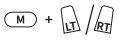
Enable / Disable Hair Trigger Mode
Hold the M + LT / RT for 2s
Swap Button Value of A-B and X-Y
M + A (long press 2 seconds) to swap A↔B and X↔Y values.
Enable / Disable Turbo Function
M + Target Button to toggle Turbo. Four speed levels: 8Hz / 12Hz / 20Hz / Off
Vibration Intensity
M + D-pad Up/Down 5 intensity levels.
FAQ
Switch, iOS, Android (phones 120-215mm), and PC.
Bluetooth for mobile devices. Wired or wireless adapter for PC.
Bluetooth 5.3. Switch <0.013s, iOS/Android <0.026s.
1000mAh total (500mAh left + 500mAh right).
Hall Effect sticks, anti-drift technology.
Yes, precision Hall Effect analog triggers.
Yes, asymmetric grip vibration.
Yes, in Bluetooth mode the phone case can remain on.
M+A to swap AB/XY. Full remapping via app. Panels, stick caps, and face buttons are detachable.


Em breve...
Este artigo foi útil?
Conte-nos se você achou útil ou se precisa de mais informações.