How to Use the GameSir Super Nova
Swapable ABXY, Perfect for Switch/Switch 2
Aperçu du produit
Fonctionnalités clés
- • Tri-mode connectivity for multi-platform compatibility
- • GameSirTM Hall Effect sensing sticks, anti-drift and ultra-durable
- • Precision-tuned Hall Effect triggers, with trigger stops
- • Fully software-customizable
Spécifications techniques
- • Working Platform: PC, Switch, and Android
- • Connection: Bluetooth, Wired, and Wireless Dongle
- • Weight: 263g/0.58lbs
- • Supported Software: GameSir Connect app
Configuration requise
Windows
Windows 10/11 Bluetooth, Wireless Dongle, Wired
Android
Android 8.0 or above Bluetooth
Switch
Switch/Switch 2 Bluetooth
Premiers pas
| Status | description |
|---|---|
| Power On | Toggle the Mode Switch to the corresponding position(Left Or Right) and press the Home button. |
| Power Off | Toggle the Mode Switch to the Off position(Middle) , or the device will automatically turn off after 10 minutes of inactivity. |
| Standby | The controller will automatically power off if there is no operation while in connection status for 10 minutes. |
| Wake Up | Press the Home button to wake up the controller. |
| Low Battery | When the battery is below 15%, the Home light will flash red. |
| Charging | You can charge the controller via the Type-C port or the charging station. When charging while the controller is off, the RGB strips will indicate the charging progress with a breathing light effect. |
| Status | Channel Indicator | description |
|---|---|---|
| Connection Successful | Solid | Device connected successfully. |
| Pairing Status | Flash Rapidly | In pairing status, it can be discovered and connected by new devices. |
| Reconnecting Status | Flash Slowly | In reconnecting status, it can automatically connect to the last successfully connected device. Press and hold Home Button + Share Button to force switch to pairing status. |
| Platform | Mode Switch Position | Mode | Switching Method |
|---|---|---|---|
| PC/Switch/Android | 2.4G Mode | Receiver | Toggle to receiver mode position. |
| PC/Switch/Android | Any Mode | Wired | Connect devices via wired connection in any mode. |
| PC/Android/Other Devices | Bluetooth Mode | Other Devices | Toggle to Bluetooth mode position and hold Home Button + B Button for two seconds. |
| Switch/Other Devices | Bluetooth Mode | Switch | Toggle to Bluetooth mode position and hold Home Button + Y Button for two seconds. |
| Android | Bluetooth Mode | Android | Toggle to Bluetooth mode position and hold Home Button + A Button for two seconds. |

Receiver Connection
- Insert the included receiver into the device's USB port.
- Toggle the controller's mode switch to the 2.4G mode and press the Home button to power on. Wait for the controller to connect.
- If the connection is unsuccessful, press the pairing button on the receiver and hold Home Button + Screenshot Button on the controller to re-enter pairing status.
Wired Connection
- Connect the controller to the computer using a Type-C cable.
Bluetooth Connection
- Toggle the controller’s mode switch to Bluetooth mode and press the Home button to power on.
- Hold Home Button + B Button until the channel indicator 2, 3, and 4 flashes quickly. Find “Wireless Controller” in the device’s Bluetooth list and click to connect.
- If the connection is unsuccessful, press and hold Home Button + Screenshot Button on the controller to re-enter pairing status.
-
On the Switch main menu, go to “Controllers”-“Change Grip/Order”.
-
Toggle the controller’s mode switch to Bluetooth mode and press the Home button to power on. Hold Home Button + Y Button until the channel indicator starts flashing up and down rapidly, and wait for the connection.
- If the connection is unsuccessful, press and hold Home Button + Screenshot Button on the controller to re-enter pairing status.
-
Toggle the controller’s mode switch to Bluetooth mode and press the Home button to power on. Hold Home Button + A Button until the channel indicator 3 and 4 starts flashing rapidly.
-
Find “GameSir-Nova Pro” in the device’s Bluetooth list and click to connect.
- If the connection is unsuccessful, press and hold Home Button + Screenshot Button on the controller to re-enter pairing status.
-
Toggle the controller’s mode switch to Bluetooth mode and press the Home button to power on. Hold Home Button + B Button until the channel indicator 2, 3, and 4 starts flashing rapidly.
-
Find “ Wireless Controller” in the device’s Bluetooth list and click to connect.
- If the connection is unsuccessful, press and hold Home Button + Screenshot Button on the controller to re-enter pairing status.
Sticks & Triggers
- Set the triggers to long-travel mode. Hold "-"(View Button) + "+"(Menu Button) + Home Button for 2 seconds to enter calibration mode. The Home light will flash slowly in white during this process.
- Ensure the triggers and sticks are not being touched. Press A Button once.
- Rotate both sticks in full circles 2-3 times. Fully press both triggers three times. Finally, press A Button to exit. The Home light will return to its original light effect.
Gyroscope
- Place the controller on a stable, flat surface. Hold M Button + Screenshot Button for 2 seconds to start calibration.
- During the process, the Home light will flash red and blue alternately. When the light returns to its original effect, calibration is complete.
-
If the controller encounters issues such as being unable to power on or off properly, youcan use a small object similar to the size of a paperclip to press the Reset button insidethe circular hole on the back of the controller. This will force the controller to power off.
-
If the controller encounters issues such as being unable to power on or off properly, you can Hold Home Button + Menu Button till the logo Button blink. This action will reset the profile and all the settings of the controller.
Tutoriels avancés
Advanced Tutorial
Forced Mode Switch
Press and hold the - and + buttons to forceswitch between Xinput, Switch, and Other Devices modes.
- This switching method only works in receiverand wired modes.

Back Button Setting
Press and hold the M button + L4/R4 buttonsimultaneously until the corresponding RGBstrip flashes white slowly. Press the button to be programmed, then pressL4/R4 button again to exit and save.
- If exiting the setting process without pressingthe button, the button value will be cleared.

Stick's Dead Zone
Press and hold the M button and push downon the left/right stick to toggle the corresponding stick's dead zone.

Turbo Function
While holding the M button, pressA/B/X/Y/LB/RB/LT/RT to activate the Turbofunction for that button.
- Repeat this operation to deactivate.Double-click the M button to clear all Turbosettings.

Trigger Mode Switch
Switch between long and short trigger pulls bytoggling trigger gear switch.
After switching, gently press the trigger fully down three timesto automatically calibrate the pull distance.

Hair Trigger Mode
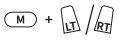
Press and hold the M button + LT/RT button toenable/disable hair trigger mode.
The trigger needs to be set to the long pullposition.

Adjust Vibration Intensity
While holding the M button, press -/ +button to decrease/increase the vibrationintensity level.

Switch Layout

Hold and press the M buttonand the south face button toswap button values of A-Band X-Y.


Customize RGB Lighting Strips

Switch Lighting Effects
 Switch Brightness
 Adjust Saturation
 Adjust Animation Speed
 Switch Colors

FAQ
It supports PC, Switch and Android.
The Super Nova offers tri-mode connectivity: Bluetooth, wired and wireless dongle connections.
The GameSir™ Hall Effect sticks use non-contact magnetic sensors to prevent stick drift and ensure smooth control, enhanced by anti-friction glide rings.
Yes, the Super Nova features Hall Effect analog triggers, offering 100% response area and superior smoothness. It also includes a quick switch to hair trigger mode by holding M+LT/RT and trigger stops for a short pull position.
There are 2 rumble motors in total, one in each grip, providing immersive vibration.
There are 2 back buttons, supporting both single button mapping and macro recording.
Yes, both the middle faceplate and ABXY buttons are detachable, allowing for layout customization.
Yes, the lighting effect (color, brightness, animation speed) can be customized via the M button and the sticks or D-pad, and also through the GameSir App and GameSir Connect App.
The mode switch allows easy switching between different connection modes.
Yes, Super Nova has turbo function. While holding the M button, press A/B/X/Y/LB/RB/LT/RT to activate the Turbo function for that button. Repeat this operation to deactivate.
- Double-click the M button to clear all Turbo settings.
Yes, it supports a 1000Hz polling rate with both wired and wireless dongle connections.

Bientôt disponible...
Cet article vous a-t-il été utile ?
Dites-nous si vous l'avez trouvé utile ou si vous avez besoin de plus d'informations.