How to Use the GameSir G7 Pro WUCHANG: Fallen Feathers Edition
Not just a collab - Going wireless on XBOX
Produktübersicht
Wichtigste Funktionen
- • GameSir x WUCHANG: Fallen Feathers Official Collaboration
- • Tri-mode connectivity - 2.4G Wireless & Wired for XBOX, PC; Bluetooth 5.3 for Android
- • GameSir Mag-Res™ TMR sticks & Hall Effect analog triggers
- • Fully software-customizable
Technische Daten
- • Working Platform:XBOX Series X|S, XBOX One, PC, Android
- • Connection: 2.4G wireless/wired for XBOX consoles and PC; Bluetooth 5.3 for Android
- • Weight: 272 g / 0.60 lbs
- • Supported Software: GameSir Nexus app
Systemanforderungen
Windows PC
Windows 10/11 Bluetooth, Wireless Dongle, Wired
XBOX
XBOX One, XBOX Series X|S Wireless Dongle, Wired
Android
Android 8.0 or above Bluetooth
Erste Schritte
| XBOX Indicator | description |
|---|---|
| Breathing | Reconnecting State*It can connect to previously paired devices. |
| Flowing Light Mode(Surround FlowingEffect) | Paring State (Bluetooth Mode)*In this state, it can be discovered and paired with devices. |
| Solid | Connection Successful |
| Off | Power-off State*The controller will enter standby state after 10 minutes ofinactivity in 2.4G or Bluetooth mode. |
| Description | Operation |
|---|---|
| Power On/Off | Short press the XBOX button to power on. While powered on,press and hold the XBOX button for 5 seconds to power off. |
| Pairing | In Bluetooth mode, press and hold the pairing button for 2seconds to enter forced pairing mode. |
| Preset ConfigurationSwitching | M+Y Configuration 1 M+B Configuration 2 M+A Configuration 3 M+X Configuration 4 |
| Hair Trigger Mode | Enable/disable hair trigger mode Press and hold the M button + LT/RT for 2 seconds |
| Low Battery | When the battery is below 15%, the XBOX indicator will flash red. |
| Charging | You can charge the controller via the Type-C port or the charging station. |
Wired Connection
- Use the included Type-C cable to connect the controller to your computer, then press the XBOX button briefly to power on.
- Once connected successfully, the XBOX indicator will remain solid.
Receiver Connection
- Insert the receiver into the computer.
- Switch the controller to the 2.4G mode, and press the XBOX button briefly to power on. Wait for the controller to connect.
- Once connected successfully, the XBOX indicator will remain solid.
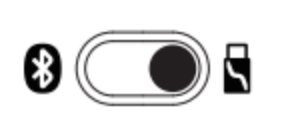
Bluetooth Connection
- Switch the controller to Bluetooth mode, and press the XBOX button briefly to power on.
- Open the Bluetooth list on your phone, find the device named GameSir G7 Pro, and click to connect.
- If the connection is unsuccessful, press and hold the pairing button on the controller to re-enter pairing status.

WIRED CONNECTION
- Use the included Type-C cable to connect the controller to the XBOX console, then press the XBOX button briefly to power on.
- Once connected successfully, the XBOX indicator will remain solid.
RECEIVER CONNECTION
- Insert the receiver into the computer.
- Toggle the controller's mode switch to the 2.4G mode, and press the XBOX button briefly to power on. Wait for the controller to connect.
- Once connected successfully, the XBOX indicator will remain solid.
Stick & Trigger Calibration
-
Set the trigger to analog mode, then press and hold View Button + Menu Button + XBOX Button starts flashing slowly.
-
Ensure that the LT & RT triggers and the left & right sticks are not being touched. ThenPress the A button. The XBOX indicator will turn off.
-
Press the LT & RT triggers to their maximum travel for 3 times. Rotate the left & rightsticks to their maximum angles for 3 times. Press the A button. A solid light on the XBOX indicator indicates that the calibration is complete.
Gyro Calibration
-
Place the controller horizontally on a flat surface, then hold the M Button + Share Button buttons for 3s seconds.
-
At this point, the XBOX Button button will flash orange and white alternately rapidly.
-
Calibration is complete when the XBOX Button stops flashing.
- Note: Gyro function only works on PC.
-
If the controller encounters issues such as being unable to power on or off properly, youcan use a small object similar to the size of a paperclip to press the Reset button insidethe circular hole on the back of the controller. This will force the controller to power off.
-
If the controller encounters issues such as being unable to power on or off properly, you can Hold View Button + Menu Button + M Button till the logo Button blink. This action will reset the profile and all the settings of the controller.
Erweiterte Tutorials
Extra Button Mapping
The G7 Pro features four extra buttons
(R4/L4 back button and R5/L5 mini bumper)
allowing you to customize your controls.
Profile Switch
- M + Y = Default Profile
- M + B = Profile 1
- M + A = Profile 2
- M + X = Profile 3
Enable / Disable Hair Trigger Mode
Hold the M + LT / RT for 2s

Volume Adjustment
Adjust Master Volume
Hold the M button + D-pad Up/Down (11 levels in total)
Note: You'll hear a beep when reaching the maximum or minimum level.
Adjust Game/Voice Balance
Hold the M button + D-pad Left/Right
Left: increase game volume, decrease voice volume. Right: Decrease game volume, increase voice volume.
Note: You'll hear a beep when reaching the maximum, middle, or minimum level.
Mute Function
Press the Mute button to turn on the mic mute function (indicator turns red). Press it again to turn it off (indicator turns off).
Note: When the Mute function is turned on, hold the Mute button to temporarily turn it off. Release the Mute button to turn it back on.
FAQ
It supports XBOX, PC, and Android.
It offers tri-mode connectivity: • 2.4G wireless & Wired for XBOX consoles and PC • Bluetooth 5.3 for Android
The G7 Pro Wuchang: Fallen Feathers edition is equipped with the latest GameSir Mag-Res™ TMR sticks, combining the precise performance and low power consumption of traditional potentiometer sticks with the exceptional durability of Hall Effect sticks, offering gamers a smoother, instantaneous, and anti-drift gaming experience like never before.
Yes, it features Hall Effect analog triggers with clicky Micro Switch trigger stops. It also includes a Hair trigger mode, activated by holding M + LT/RT.
It has 4 rumble motors, one in each grip and trigger, providing immersive haptic feedback.
It has 4 mappable buttons: 2 mini bumpers (R5/L5) and 2 lockable back buttons (R4/L4).
The latches allow gamers to enable or disable the back buttons to prevent unintended inputs.
The mode switch allows for quick and easy switching between connection modes for added convenience.
Yes, it supports a 1000Hz polling rate on PC via both wired and 2.4G connections.
• Charging Station x 1 • Receiver x 1 • D-pad x 2 • Cable Retainer x 1 • 3m Type-C Cable x 1
Yes, it features a built-in gyroscope with mapping support. (PC only)
Yes, it supports the GameSir Nexus app, enabling advanced customizations such as gyro settings, stick curve adjustments, and button-to-mouse mapping.
Yes, it supports 3.5mm audio output via both wired & 2.4G wireless connections.
Yes, it features a three-part magnetic swappable faceplate and is compatible with faceplates from the previous G7 series. However, its faceplate is not compatible with other G7 series controllers, including the G7, G7 SE, and G7 HE.


Demnächst verfügbar...
War dieser Artikel hilfreich?
Lassen Sie uns wissen, ob Sie die Informationen hilfreich fanden oder mehr brauchen.